













A lot of testing was done and so we can release Designer, Workspace and Admin-Tool in version 24.2.5. It includes several new features which ease work with little changes or offer new possibilites due to greater changes.
Tabs can be moved using the mouse
The tabs which are displayed above the editor area for every opened document or segment can now be moved to another position using the mouse. This is very useful if a lot of elements are open at the same time. You may move the central document to the left and open cascading segments right to it. This prevents you from closing the document accidently.
New features for pdf-files in publications
In this area the new version offers three new features with different impact.
Free positions for pdf-files: PDF files were previously restricted to the end of a publication. This was based on the belief that they typically contained enclosures, like rules and conditions, which, while necessary, were not important enough to be placed in a more prominent position.
We recently found out that there are indeed use cases requiring other positions for pdf-files in publications. That is why the arrow buttons for sorting are now working for documents and for pdf-files likewise in both directions.
Dynamic pdf-files allowed: You can now integrate interactive forms into your publications. This can be done either by uploading a dynamic pdf-file to the repository or by creating one directly within the repository, provided you have the necessary tools.
Overlays for pdf-files: This feature was developed for a customer-specific use case and is now available to all users. You can combine an existing pdf-file with additional content. The proceeding is the same as with templates and master templates. In fact you also have to create a master template which holds the required content in the required positions. The pdf-file and the master are connected in the publication. The result will be the pdf-file with the master elements. That’s all, quite simple, if you got the basic principle.
Finding xml-files belonging to documents
What do you do if you want to find the xml-file being used by a template or a segment? Sometimes the search functions helps you, but of course only if the xml-file is stored in the repository. That is why we added a field and a button to the properties screen for templates and segments. The field displays the path to the xml-file, the button will open the repository and highlight the xml-file.
If the xml-file was not stored in the repository during import, the field is empty. The button has a different title, and a click will store the xml-file in the selected folder in the repository.
This new feature eases work of the support team, too, while working with import packages where they have to check the content in the data source.
Change the settings in the application
You probably do not want to change the language or theme in Designer or Workspace several times a day. But whenever you want to do this, you can use the menu item „settings“ on the right side in the top menu bar.
Honestly speaking, this new feature was required due to security reasons. As some customers use authentication and authorisation methods which skip the traditional login screen, they lost the possibility to select the language and theme manually. Now all users can change the default language or the default theme at any time if they prefer an alternative.
Please change the settings directly after login, because the application will be reloaded. All open elements will be closed and if you have unsaved changes, they will be lost.
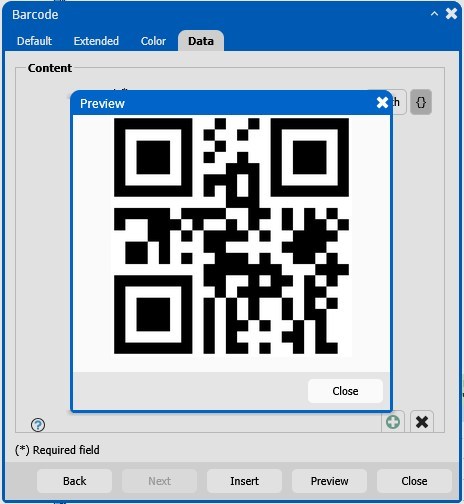
Preview for barcodes and images
In former versions you had to close the creation screen of barcodes, charts or dynamic images, save the template and switch to preview in order to see the result.
This lengthy process is now obsolete. A new preview button in the creation screen opens another screen with a preview. This allows quicker checking, correction and re-checking until the final result meets your expectations.
Show total number of pages only
This new feature also comes from a customer use case. It may be rare, but it is ready for use by everybody. Usually you want to see the page number on every page. In this case only the total number of pages of a multipage document was needed.
The page number screen was enhanced. You can now display something like „the document has x pages“, where x is replaced by the real number of pages.
This new version 24.2.5 with the mentioned features has been in use by our design-team for some time. Additionally our test-team checked all functions and asked for corrections of some bugs or improvements of usability.
With the successful completion of this phase, we are confident in starting the roll-out of version 24.2.5 in May. Customers will of course receive a release letter and an updated user guide with a detailed descriptions of the features presented in this post.