






Formatting tables: borders, text styles and color

As promised in our last post on tables we continue to assist you in table design. Here we look at borders, background color and text formatting. There are many possibilities to do so in different places in Designer.
Using table borders

A real table including lots of data has outer and inner borders. The setup is easy and the borders help to give the table a clear structure. 

You may also use tables for straight positioning of content. Then you do not need all border lines but only a few of them as dividers. You will see in this post how to best proceed for this purpose.

Outer border for the entire table

These settings always have to be made in the table properties screen and are valid for the entire table.

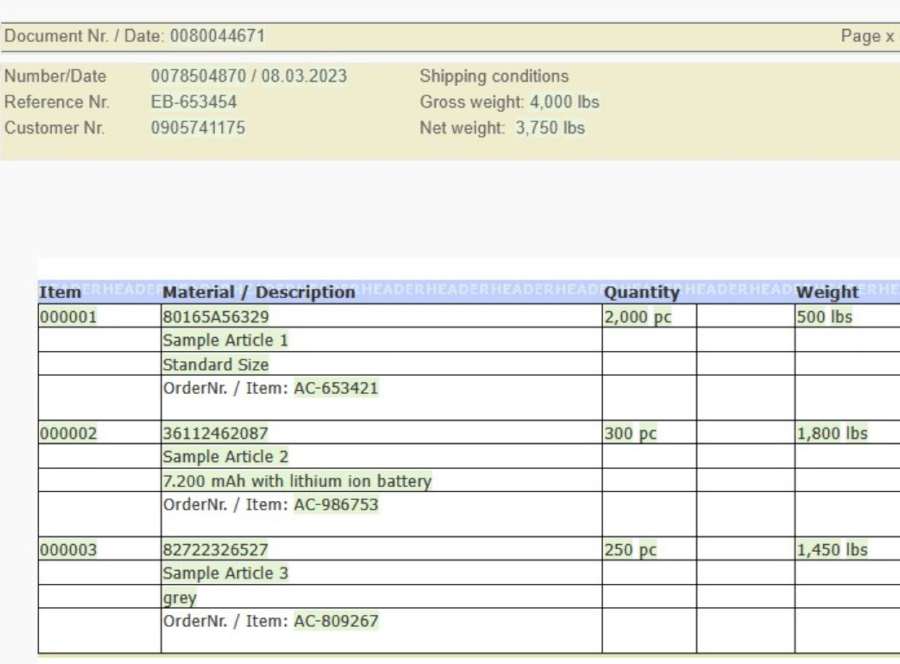
It may look like this:

Vorschau Rahmen aussen

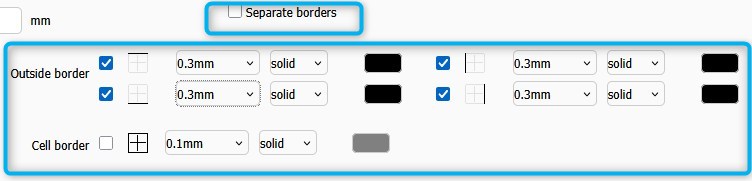
How to get there:

To get outside borders you have to check all four checkboxes for top, right, left und bottom border. Additionally you can select the width, type and color for every border. All other checkboxes in the screen have to remain empty.

The blue boxes in the screenshot show you the fields and checkboxes to be used for border formatting.

Uniform borders for all table cells

If you want the same outside and cell borders you only have to check one single checkbox.

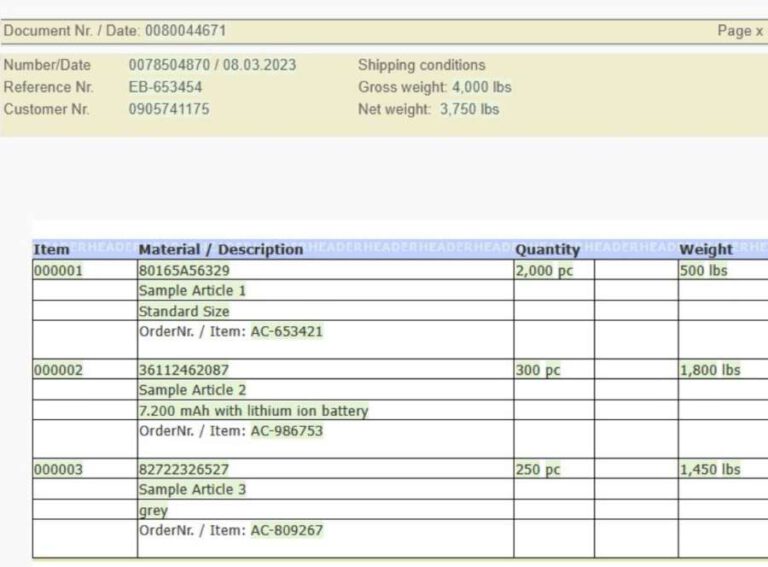
It may look like this:

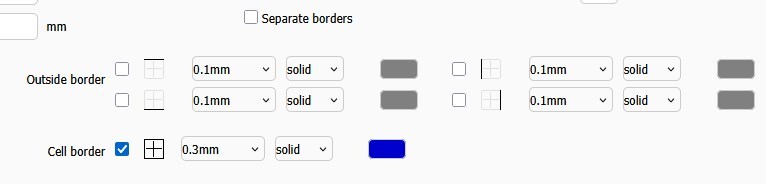
How to get there:

Just check the checkbox “Cell border” and select the desired width, type and color of the border.

Cell borders with unique outside borders

This is possible, too, and is basically a combination of the configurations already shown above. But you have to know some special details.

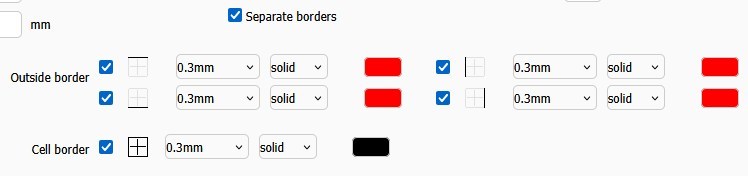
It may look like this:

Vorschau Innen- und Außenrahmen Tabelle

How to get there:

In this case you have to check the checkbox “separate borders”. If the inner and outer border have the same width, the outer border will be visible. If there are great differences between the line width of both lines the one with the higher width value will be visible even if “separate bordes” is not checked.

In most cases you only need one line as outside border. This is of course possible, but it requires more than just a change in the table properties screen. You also have to delete the border settings in the cell properties screen.

In the example above the top line was deleted in the cell in the middle. If you want the same effect for all border cells you obviously have to do the same for all of them.

Border top or bottom only

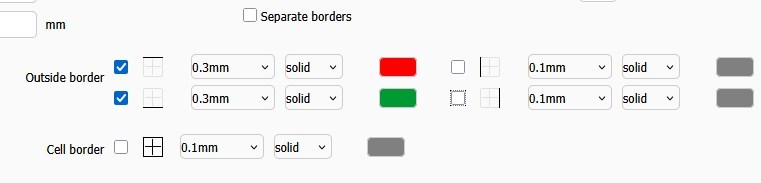
This requirement is similar to the examples above and can easily be implemented in the tables properties screen.

You probably do not need an example for the configuration of a border on the right and/or left side of the table.

It may look like this:

Vorschau Rahmen oben unten

How to get there:

Rounded corners

Do you want rounded corners? Then do not look for a checkbox in the tables properties screen. Please open the cell properties screen instead. There you can configure rounded corners in different ways. If you assign rounded corners to all the outer cells the entire table will look as shown in the example below. You can also configure rounded corners for a cell in the middle of the table.

Keep in mind that the setup of rounded corners requires several steps in the cells concerned.

It may look like this:

How to get there:

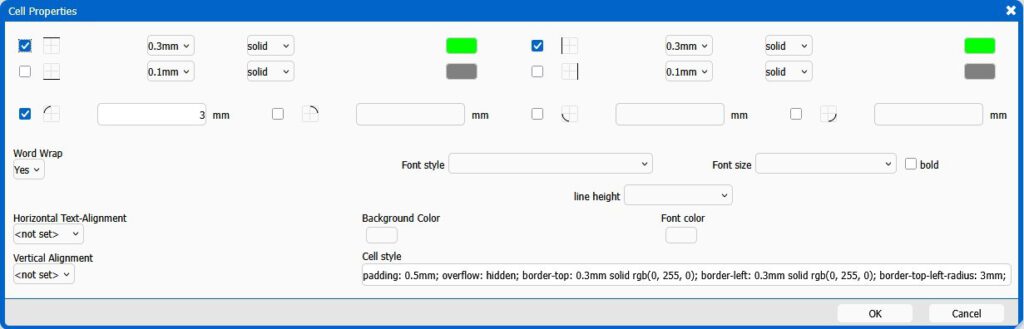
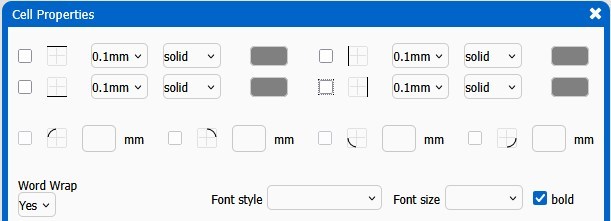
The example shows the setting for the upper left cell. In the cell properties you have to check the checkboxes belonging to these two borders and select their width, color and style (the green ones in this example). Additionally you have to define the border radius in the third line of the screen. Your settings will be translated into css-code you can see down right in the field “Cell style”. If you are familar with css you can also type your commands directly into this field.

Changes for the other corners have to be made the same way. After this you also have to define the straight borders for the outer cells in the middle of the table.

ADVICE: Finish the overall setup of the table including the table and column width before designing the borders. Otherwise the border formats might be lost after changes in the general table settings.

Creating bold text

There are many ways to get bold text. It is worth knowing all of them in order to get the desired result and a clean source code. It also avoids confusion in case several people are working on one template.

False friends in bold matters

You can highlight the entire table, several cells or selected text with the mouse and press the “B”-button in the menu bar or STRG+B. This creates bold text as expected. But this does not check the “bold” checkboxes in the properties screens of table, row or cell. 

In source code the text is enclosed in <strong>-tags. If you check the “bold” checkboxes in the screens, the css-code “font-weight:bold” will instead be included in the syle class of the element.

A user does not need to know these details, but he or she should know that there are two different ways having nothing in common. If you have some bold text which does not change when you click on the “B”-button, you did not encounter a bug in Designer but should instead check the table, row or cell properties screens to see whether a “bold” checkbox in there is checked.

Hierarchy between table, row and cell

When you want content to be displayed in bold, you better start with making a good plan. Define first, which areas of the table shall be printed in bold. When you know this, you can start formatting while preventing a mismatch in different types.

Setting bold in table properties

You can use bold formatting in the tables properties screen if you want 

  • the table header
  • the table footer
  • the entire content of the table

to be displayed in bold.

On the right side of the screen you can see three checkboxes “bold”. You can only check the checkboxes for header and footer if these are enabled.

If you select “bold” in this screen, all other settings in the row- or cell-properties will be ignored. Even though the cell properties show an empty “bold” checkbox, the content of the cell will remain bold.

If only one single cell of a table shall not be written in bold, you must not check the “bold” checkbox in the table properties. In this case you have to work on row- or cell-level.

Setting bold in row properties

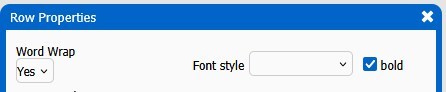
If you want bold text for an entire table row you have to check the checkbox “bold” in the row properties screen. This selection will win, no matter what is defined in the cell properties.

If only one single cell of a row shall not be written in bold, you must not check the “bold” checkbox in the row properties. In this case you have to work on cell-level.

Setting bold in cell properties

If only one cell shall be different you have to do your formatting in the cell properties screen. You only have to adapt the cells which need bold text. The other cells will get the default configuration being not bold.

Background color and font

The hierachy we just described is valid for bold and fonts. 

The background color works exactly the opposite way. Here, the color selected in the table properties is valid as long as no other color is selected on row or cell level. If the row gets another color it will be used for this row. If a cell within this row gets another color, it will be displayed.

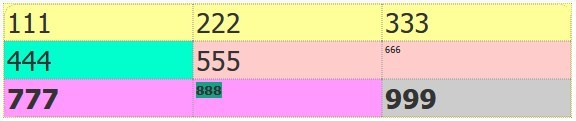
The background color you select in the menu bar only covers the text but not the entire cell (see dark green background in the cell in the last line in the middle in the following screenshot).

The font size and color can ony be defined in the table and cell properties. The row properties screen does not offer this option. Changing these settings in the menu bar has the same effect on source code.

It is useful to know these different possibilities even though in business nobody will create such colorful tables including all available formatting options.

Maybe these examples give you some creative ideas and the required knowledge for a target-oriented design. If so, the author of this post is happy as it was worth writing it.

Cookie Consent with Real Cookie Banner